

Written by Allen Wyatt (last updated August 24, 2024)
This tip applies to Word 97, 2000, 2002, and 2003
If you are using Word to manage different versions of your document (using the Versions feature), there may come a time when you want to delete an old version of your document. This is periodically a good idea, anyway, since each version you save increases the amount of disk space necessary to store your file. To delete a saved version, follow these steps:
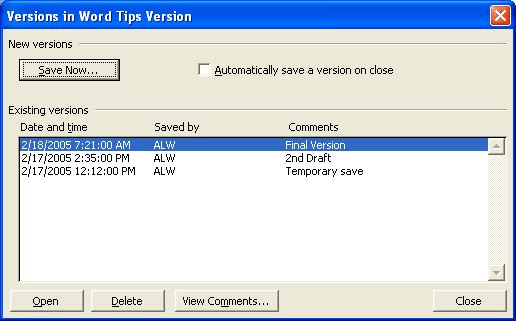
Figure 1. The Versions dialog box.
WordTips is your source for cost-effective Microsoft Word training. (Microsoft Word is the most popular word processing software in the world.) This tip (1851) applies to Microsoft Word 97, 2000, 2002, and 2003.

Do More in Less Time! An easy-to-understand guide to the more advanced features available in the Microsoft 365 version of Word. Enhance the quality of your documents and boost productivity in any field with this in-depth resource. Complete your Word-related tasks more efficiently as you unlock lesser-known tools and learn to quickly access the features you need. Check out Microsoft 365 Word For Professionals For Dummies today!
Got an AutoShape you previously added to a document, buy you now want to change to a different shape? You can change ...
Discover MoreSee exactly what you want to see during your Discussion.
Discover MoreGot an audio file you want to insert in your document? It's easy to do when you use the Object dialog box, as described ...
Discover MoreFREE SERVICE: Get tips like this every week in WordTips, a free productivity newsletter. Enter your address and click "Subscribe."
There are currently no comments for this tip. (Be the first to leave your comment—just use the simple form above!)
Got a version of Word that uses the menu interface (Word 97, Word 2000, Word 2002, or Word 2003)? This site is for you! If you use a later version of Word, visit our WordTips site focusing on the ribbon interface.
Visit the WordTips channel on YouTube

FREE SERVICE: Get tips like this every week in WordTips, a free productivity newsletter. Enter your address and click "Subscribe."
Copyright © 2026 Sharon Parq Associates, Inc.
Comments