
Please Note: This article is written for users of the following Microsoft Word versions: 97, 2000, 2002, and 2003. If you are using a later version (Word 2007 or later), this tip may not work for you. For a version of this tip written specifically for later versions of Word, click here: Deleting All Footnotes.

Written by Allen Wyatt (last updated December 27, 2019)
This tip applies to Word 97, 2000, 2002, and 2003
Certain types of documents require the use of footnotes to help document sources or provide additional information relative to the content being discussed. At some point you may want to delete all the footnotes in your document. One thing you can try is to do a simple search and replace to remove all the footnotes. Follow these steps:
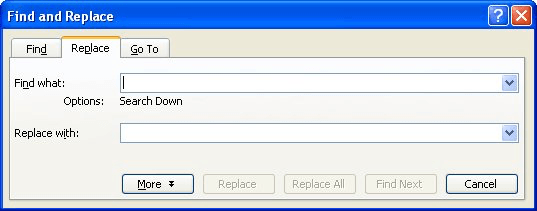
Figure 1. The Replace tab of the Find and Replace dialog box.
This approach works because when you delete footnote marks, the footnote associated with that mark is also automatically deleted.
If you find yourself ridding lots of documents of their footnotes, you may want to create a macro that will do the job for you. This macro can then be assigned to a toolbar button or to a menu option. The following macro will remove all the footnotes in a document:
Sub DelFoots()
    Dim fn As Footnote

    For Each fn In ActiveDocument.Footnotes
        fn.Delete
    Next
End Sub
Note:
WordTips is your source for cost-effective Microsoft Word training. (Microsoft Word is the most popular word processing software in the world.) This tip (1909) applies to Microsoft Word 97, 2000, 2002, and 2003. You can find a version of this tip for the ribbon interface of Word (Word 2007 and later) here: Deleting All Footnotes.
The First and Last Word on Word! Bestselling For Dummies author Dan Gookin puts his usual fun and friendly candor back to work to show you how to navigate Word 2019. Spend more time working and less time trying to figure it all out! Check out Word 2019 For Dummies today!
Depending on whom you are writing for, you may want your footnote and endnote references to appear a specific way. Word ...
Discover MoreWhen you have Word calculate how many words there are in a document, it normally doesn't pay attention to text in ...
Discover MoreWord allows you to add footnotes to a document, but they are rather straightforward and simple in their application. If ...
Discover MoreFREE SERVICE: Get tips like this every week in WordTips, a free productivity newsletter. Enter your address and click "Subscribe."
2024-05-04 13:20:56
Hina
Waoo thanku you solve my big problem.
2022-01-13 15:23:53
Hunter
Awesome help, thank you!
Got a version of Word that uses the menu interface (Word 97, Word 2000, Word 2002, or Word 2003)? This site is for you! If you use a later version of Word, visit our WordTips site focusing on the ribbon interface.
Visit the WordTips channel on YouTube

FREE SERVICE: Get tips like this every week in WordTips, a free productivity newsletter. Enter your address and click "Subscribe."
Copyright © 2026 Sharon Parq Associates, Inc.
 Please Note:
This article is written for users of the following Microsoft Word versions: 97, 2000, 2002, and 2003. If you are using a later version (Word 2007 or later), this tip may not work for you. For a version of this tip written specifically for later versions of Word, click here:
Please Note:
This article is written for users of the following Microsoft Word versions: 97, 2000, 2002, and 2003. If you are using a later version (Word 2007 or later), this tip may not work for you. For a version of this tip written specifically for later versions of Word, click here:
Comments